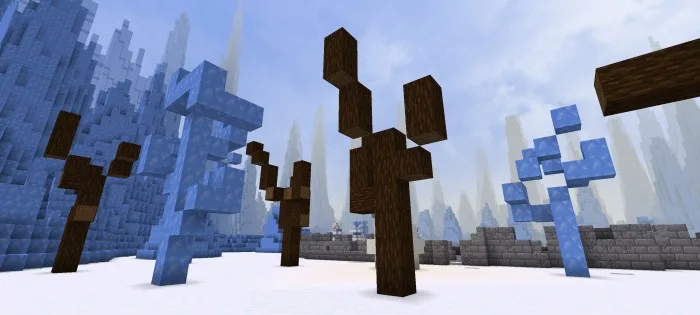
MCPE Mob Battle Arena Map (1.21, 1.20) – MCPE/Bedrock
Skip to DownloadMob Battle Arena Map is perfect for PvP enthusiasts.
ad
Description
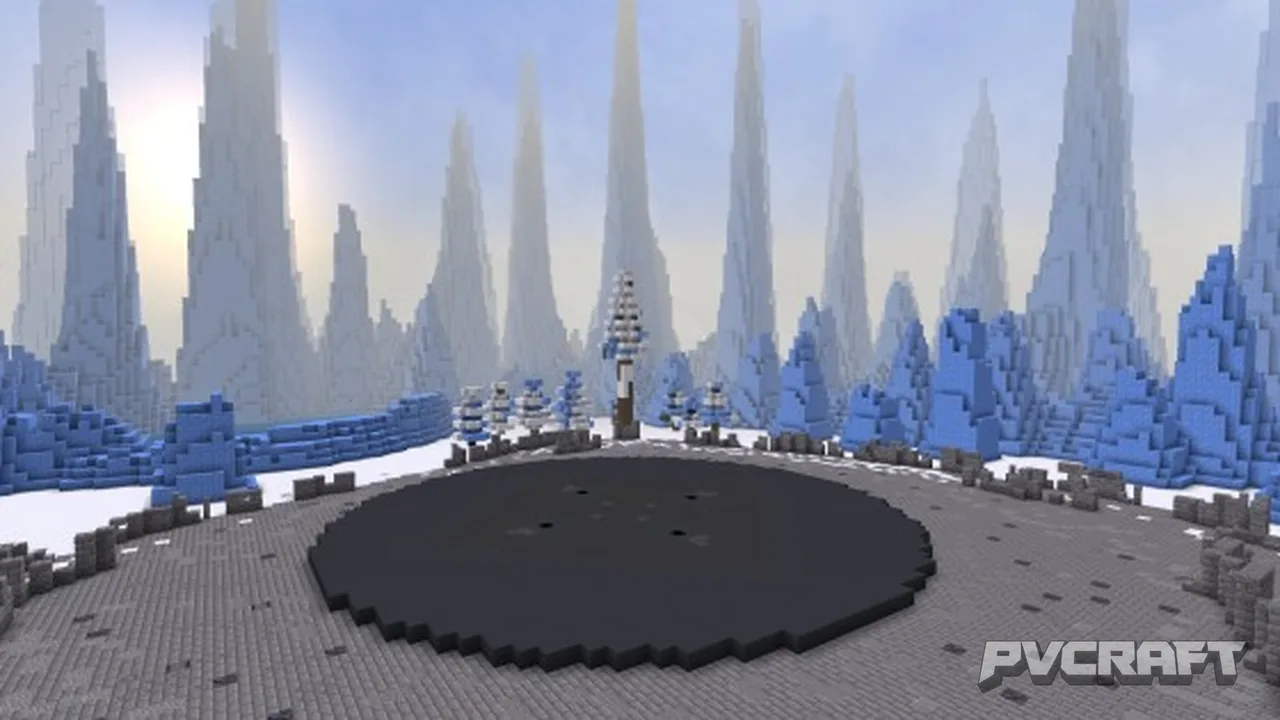
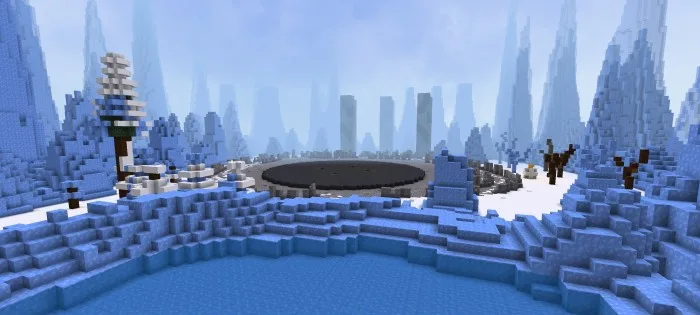
Are you tired of spending hours building arenas just to have a decent fight? Do you dream of epic PvP duels, intense boss battles, and wave after wave of hostile mobs — all without the tedious preparation? Welcome to Mob Battle Arena, the most complete combat experience ever created for Minecraft Bedrock Edition.
But let's be clear right from the start. Mob Battle Arena is not just another map collection. It is much more than that. Think of it as a full addon that transforms the way you experience combat in Minecraft. While traditional map collections give you static environments, Mob Battle Arena gives you dynamic, feature-packed battlegrounds with built-in systems that track scores, spawn enemies intelligently, and reward your fighting skills in real time.
What makes Mob Battle Arena different?
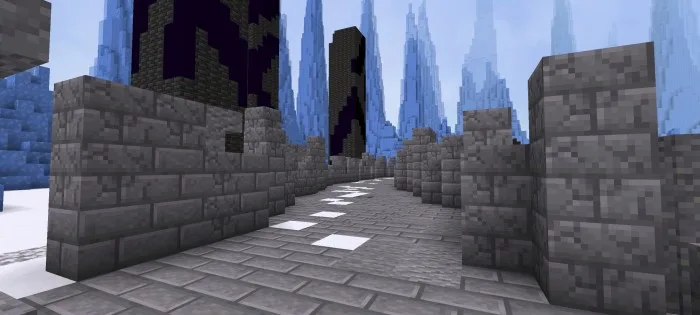
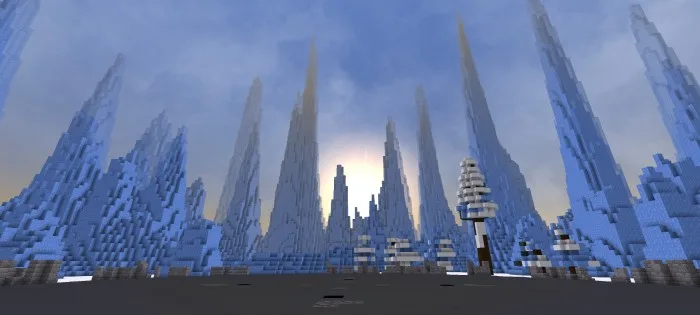
Most PvP maps are empty boxes. You bring your own friends, your own rules, and your own sense of fair play. Mob Battle Arena changes everything. Inside this addon, you will find a growing collection of pre-set, professionally designed maps, each tailored for a specific combat style. Some maps are built for fast-paced one-versus-one duels. Others are massive arenas designed for team battles involving up to sixteen players. And then there are the special maps — the ones built for true warriors — where you face custom boss mobs with unique attack patterns, massive health pools, and legendary loot.
ad
About the Content
boss battles, and all things combat-related. It provides free, pre-set maps for Minecraft players, with some cool features added to a few maps. Think of it as an addon rather than just a map collection.
Installation
Step 1: Obtain the Mob Battle Arena Package
Download the Mob Battle Arena file from your trusted source. The package will be delivered as one of the following formats:
.mcaddon (most common and easiest — handles both map and addon files automatically)
.mcworld (map only — requires separate addon installation if not included)
.zip (contains separate behavior pack and resource pack folders)
For the best experience, always look for the .mcaddon format. This single file installs everything at once.
Step 2: Installation by Device
For Windows 10/11 (Minecraft Bedrock from Microsoft Store):
If the file is .mcaddon: Double-click the file. Minecraft will launch automatically and import both the behavior pack and the resource pack. Once finished, the Mob Battle Arena world will appear in your worlds list. No further steps needed.
If the file is .mcworld: Double-click the file. Minecraft will launch and import the world. However, you may need to manually activate the addon packs. After import, go to the world settings, click on Behavior Packs, and activate any packs listed there. Do the same for Resource Packs.
If the file is .zip: Extract the contents. You will see a behavior pack folder and a resource pack folder. Copy both folders. Press Windows + R, type %localappdata%\Packages\Microsoft.MinecraftUWP_8wekyb3d8bbwe\LocalState\games\com.mojang\ and paste the behavior pack into the behavior_packs folder and the resource pack into the resource_packs folder. Then launch Minecraft, create a new world, and apply both packs manually. For easiest results, find a pre-built .mcaddon version.
For Android (mobile):
Locate the downloaded .mcaddon or .mcworld file using your file manager.
Tap on the file. Your device will ask which app to use. Select Minecraft.
Minecraft will launch and automatically import all content.
Wait for the import confirmation message. The Mob Battle Arena world will now appear in your worlds list.
For iOS (iPhone/iPad):
Download the .mcaddon file to your device.
Tap the file. Select "Share" and then "Copy to Minecraft".
Minecraft will open and display an import progress bar.
When complete, the world will be available in the Play menu.
Supported Minecraft Versions
1.21
If the download button doesn't work, click here for alternatives
If you are the original creator and would like this content removed, please submit a request through our DMCA page.