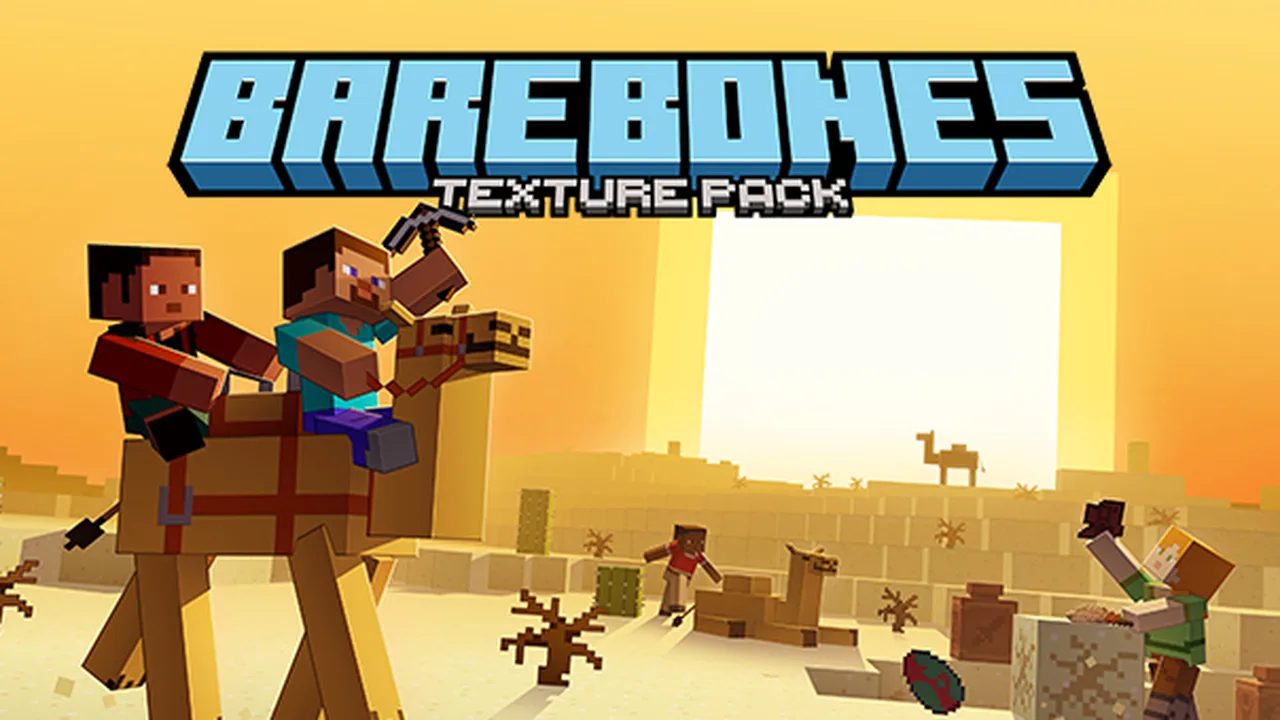
MCPE Bare Bones Texture Pack
Skip to DownloadThe Bare Bones Texture Pack transforms Minecraft into a vibrant world with a simplistic art style, enhancing the gameplay experience without overwhelming detail.
ad
Description
The Bare Bones Texture Pack is a popular choice among Minecraft players who desire a clean and simple aesthetic. By replacing standard textures with lighter and clearer versions, this pack breathes new life into the game, allowing players to focus more on their creativity and less on intricate details that can sometimes distract from gameplay. With a cohesive color palette and consistent texture style, the Bare Bones pack elevates the Minecraft experience to new heights.
### Key Features:
- **Simple Aesthetic**: The textures in this pack are straightforward, offering simplicity while keeping the fun and charm of Minecraft intact. Players will find that the clean design makes it easier to identify blocks and items.
- **Vibrant Colors**: The color scheme is bright and appealing, making your Minecraft world feel more alive and engaging. This brightness enhances visibility and makes the gameplay experience more enjoyable.
- **Smooth Performance**: The Bare Bones Texture Pack is optimized for performance, ensuring that even lower-end devices can run Minecraft smoothly without lag, a significant advantage for players with less powerful systems.
- **Compatibility**: This texture pack is compatible with most Minecraft versions, including both Java and Bedrock editions, making it accessible to a vast majority of players regardless of their platform choice.
### Installation Instructions:
1. **Download the Texture Pack**: Start by downloading the Bare Bones Texture Pack from a trusted resource. Make sure to choose the version that matches your Minecraft edition.
2. **Open Minecraft**: Launch the game and navigate to the main menu. Make sure you select the profile corresponding to the version you downloaded the texture pack for.
3. **Access Texture Packs**: Click on “Options” then go to “Resource Packs” (or “Texture Packs” in some versions). This is where you’ll manage your active packs.
4. **Load the Pack**: In the Resource Packs screen, you’ll see two columns. The left shows available packs, and the right shows the packs currently in use. Locate the Bare Bones pack in the left column and click the arrow to move it to the right column.
5. **Apply the Pack**: Once the Bare Bones pack appears in the right column, your selection is applied, and you can return to the gameplay.
6. **Restart if Necessary**: For some versions or systems, you may need to restart your Minecraft client to fully apply the texture pack. This step ensures all visual changes take effect.
7. **Enjoy Your Game**: After applying the texture pack, jump into your world and explore the revamped visuals!
From its eye-catching design to its straightforward installation process, the Bare Bones Texture Pack is an excellent option for any Minecraft enthusiast looking to refresh their gameplay while still embracing the original spirit of the game. Whether you’re building intricate structures or simply exploring, this pack enhances your experience without any visual clutter. It's a fantastic choice for players who prefer a less complicated yet visually appealing Minecraft adventure. Dive in and see how this texture pack can change the way you see your Minecraft world!
ad
About the Content
Designed for players who appreciate a minimalist approach, the Bare Bones Texture Pack refines the game's visual elements while maintaining the classic Minecraft charm. It simplifies block textures and character designs for a fresh perspective, perfect for both veterans and newcomers.
Installation
To install the Bare Bones Texture Pack effectively, follow these detailed steps:
1. **Download the Pack**: Make sure to get the texture pack from a reliable source. You should be able to find it on Minecraft community sites or forums.
2. **Check Compatibility**: Ensure that the downloaded version matches your specific edition of Minecraft (Java or Bedrock), as there are different formats for each.
3. **Locate the Minecraft Folder**:
- For **Java Edition**:
- Press `Windows + R`, type `%appdata%/.minecraft/resourcepacks`, and hit Enter to open the resource packs folder.
- For **Bedrock Edition**: Open your file explorer and navigate to: `C:\\
ockstar games\\social club\\… (navigate to your Minecraft installation)`, but location can vary depending on the platform.
4. **Extract the Downloaded File**: If the texture pack is in a ZIP file format, extract it using file extraction software to access its contents. Drag and drop the extracted folder directly into the resource packs folder.
5. **Launch Minecraft**: Open Minecraft as usual. On the main menu, navigate to the Options tab.
6. **Select Resource Packs**: Go into the Resource Packs options. The Bare Bones Texture Pack should appear in the list of available packs.
7. **Activate the Pack**: Move the Bare Bones pack to the active packs column using the arrow buttons. This step is crucial to make sure the pack is loaded into your game.
8. **Adjust Settings if Needed**: Depending on your preferences, you might want to change other graphical settings within Minecraft to best enjoy the visual improvements provided by the texture pack.
9. **Test Your Setup**: Start a new game or load an existing world to see the Bare Bones pack in action. If you encounter any issues, consider restarting your game or checking for any updates to the texture pack.
10. **Celebrate Your New Aesthetic**: Now, go ahead and enjoy your newly configured Minecraft experience with fresh visuals that enhance your creativity!
By following these steps, you can easily install and explore the Bare Bones Texture Pack. You'll find that the experience not only enriches your visuals but also provides clarity and focus, helping you to enjoy Minecraft in a whole new way!
Supported Minecraft Versions
1.21
If the download button doesn't work, click here for alternatives
If you are the original creator and would like this content removed, please submit a request through our DMCA page.