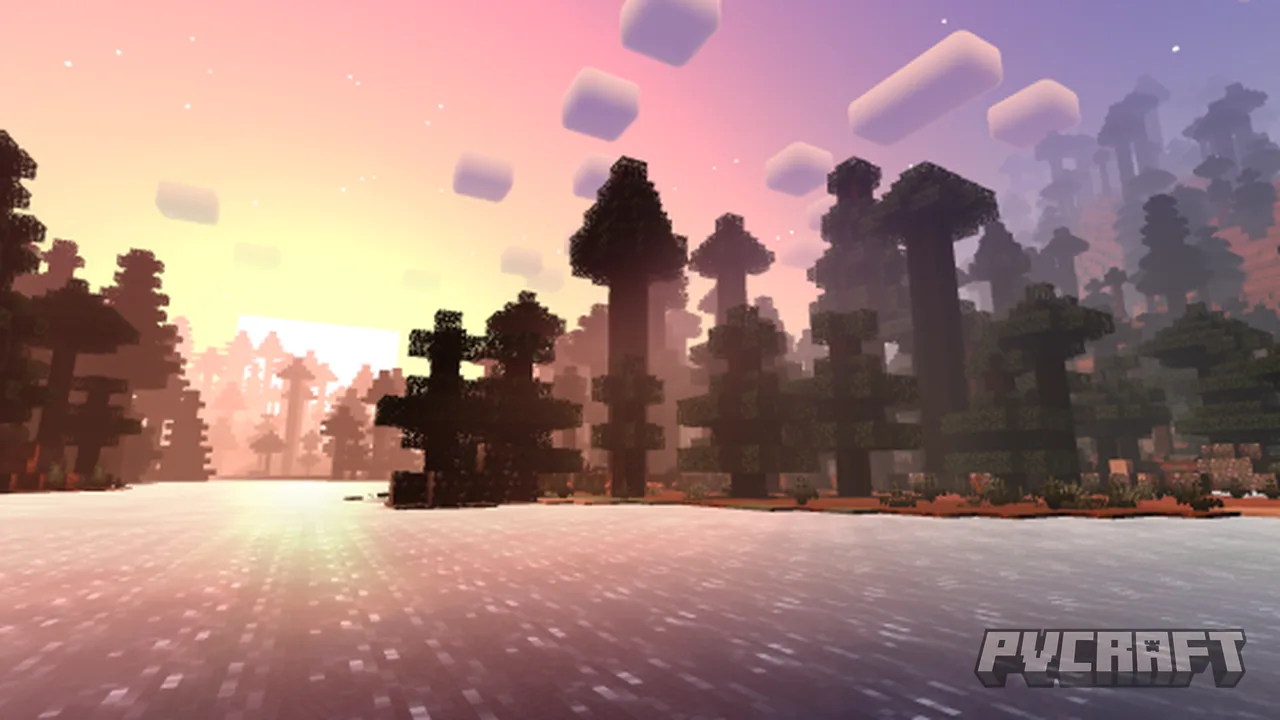
MCPE Newb Complemetary Shader
Skip to DownloadThe Newb Complementary Shader enhances the visual experience of Minecraft Bedrock Edition with vibrant lighting and realistic textures, catering to players seeking a more immersive gaming environment.
ad
Description
The Newb Complementary Shader introduces a collection of visual upgrades to Minecraft Bedrock Edition, making your in-game environment not only more appealing but also more engaging. This shader focuses on several key aspects to elevate your gameplay:
1. **Lighting Effects**: One of the standout features of the Newb Complementary Shader is its ability to create dynamic lighting. The sun rises and sets realistically, casting shadows that change throughout the day. This not only enhances the immersion but also helps players gauge time without relying solely on the in-game clock.
2. **Water Rendering**: With improved water effects, lakes and oceans appear clearer and more lifelike. The shader simulates reflections on the water’s surface, creating ripples and realistic reflections based on the environment. You can observe the world above you mirrored in the water below, whether it’s the sky, trees, or even your character.
3. **Atmospheric Effects**: Fog, clouds, and other atmospheric elements are rendered beautifully, contributing to a serene and enchanting environment. The clouds have depth and movement, making exploration of high areas more rewarding and visually impressive.
4. **Color Vibrancy**: The shader modifies the color palette of Minecraft, intensifying the vibrancy of natural elements like grass, trees, and flowers. This change not only makes the environment pop but also adds to the aesthetic appeal during gameplay.
5. **Performance Optimization**: Despite the visual enhancements, the Newb Complementary Shader is optimized for performance on various devices. Whether you're playing on mobile, console, or Windows, you can expect smooth performance without significant frame drops, allowing you to enjoy the enhanced graphics without interruptions.
6. **Compatibility**: This shader is fully compatible with the latest versions of Minecraft Bedrock Edition. It works seamlessly with existing game mechanics and does not create conflicts with other addons or resources packs, ensuring a hassle-free integration.
Installing the Newb Complementary Shader is a straightforward process. Here’s how you can do it:
### How to Install the Newb Complementary Shader:
1. **Download the Shader**: Begin by downloading the Newb Complementary Shader file from the provided source section (note you’ll find it under the respective downloads). The file usually comes in a .mcpack format, which is compatible with Minecraft Bedrock Edition.
2. **Import into Minecraft**: Once the download is complete, open the file. If you have Minecraft installed, it should automatically prompt you to import the shader package. Follow the on-screen instructions to complete the import.
3. **Activate the Shader**: Launch Minecraft and navigate to the ‘Settings’ section. From there, select ‘Global Resources’ where you’ll find a list of your downloaded packs. Look for the Newb Complementary Shader and click the ‘Activate’ button.
4. **Create or Load a World**: After activating the shader, either create a new world or load an existing one. Ensure to select ‘Use Experimental Features’ if prompted to utilize the full capabilities of the shader.
5. **Enjoy Enhanced Graphics**: Once in the game, take a moment to appreciate the enhanced visuals. Explore your surroundings to see how the Newb Complementary Shader transforms both familiar and new landscapes.
### Additional Notes:
- **Performance Considerations**: While the shader is optimized for various devices, players with lower-end hardware should be mindful of performance settings. Adjusting graphics settings may enhance frame rates without compromising the shader’s visual quality too much.
- **Updates**: Regular updates may be released to improve features, fix bugs, and enhance compatibility, so keep an eye on the change log for the latest information.
The Newb Complementary Shader is an excellent choice for players looking to add depth and beauty to their Minecraft adventures. With its easy installation process and noticeable visual improvements, it’s as enjoyable as it is user-friendly.
ad
About the Content
The Newb Complementary Shader is designed specifically for Minecraft Bedrock Edition, transforming your gameplay with enhanced visuals. This shader brings a set of improvements over traditional graphics, including detailed light reflections, dynamic shadows, and stunning water effects. Whether you're building, exploring, or battling mobs, every element in the game looks more realistic and alive.
CHANGELOG:
- Initial release with basic shader effects
- Added dynamic shadows for better depth perception
- Improved water reflection techniques
- Enhanced sky lighting for a more natural environment
- Optimized performance for smoother gameplay
- Fixed glitches related to specific block types
- Adjusted color profiles for more vibrant landscapes
The Newb Complementary Shader is ideal for players who want to upgrade their visual experience without sacrificing performance. Beginners will find it straightforward to use, while experienced players will appreciate the fine-tuned details it adds to the game. It's suitable for casual gameplay and immersive builds alike, making it a must-try for anyone looking to enhance their Minecraft world visually.
Installation
Installing the Newb Complementary Shader is a straightforward process. Here’s how you can do it:
1. **Download the Shader**: Start by downloading the Newb Complementary Shader file. It usually comes in a .mcpack format, suitable for Minecraft Bedrock Edition.
2. **Import into Minecraft**: Locate the downloaded file on your device and tap on it. This should automatically open Minecraft and prompt you to import the shader pack.
3. **Activate the Shader**: After importing, launch Minecraft and go to the ‘Settings’ menu. Select ‘Global Resources,’ where you can find your newly downloaded shader pack. Click on it and then ‘Activate’ to enable the shader for your game.
4. **Select a World**: Now, either create a new world or load an existing one where you want to use the shader. Make sure to check any prompts about experimental features, as enabling them often enhances the shader’s performance.
5. **Enjoy the Enhanced Visuals**: Once in your game, explore your environment to see the differences the shader makes. The enhanced lighting, reflections, and vibrant colors will enrich your Minecraft experience.
### Additional Tips:
- **Performance Settings**: If you notice any lag while using the shader, consider tweaking your graphics settings within the game to find an optimal balance between performance and visual quality.
- **Regular Updates**: Keep an eye out for updates to the shader to enjoy ongoing improvements and fixes. Regularly check for any enhancements that might be released to make the shader even better.
Supported Minecraft Versions
1.21
If the download button doesn't work, click here for alternatives
If you are the original creator and would like this content removed, please submit a request through our DMCA page.