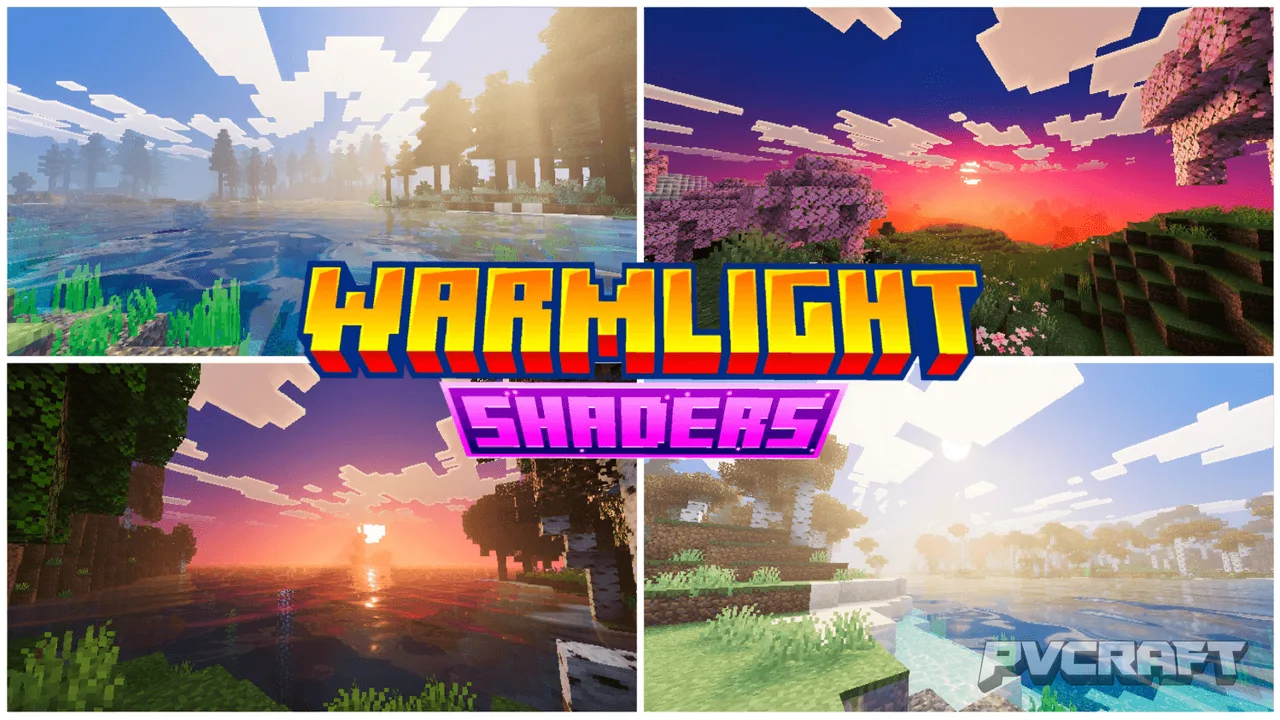
MCPE WarmLight Shaders for a Radiant Minecraft Experience
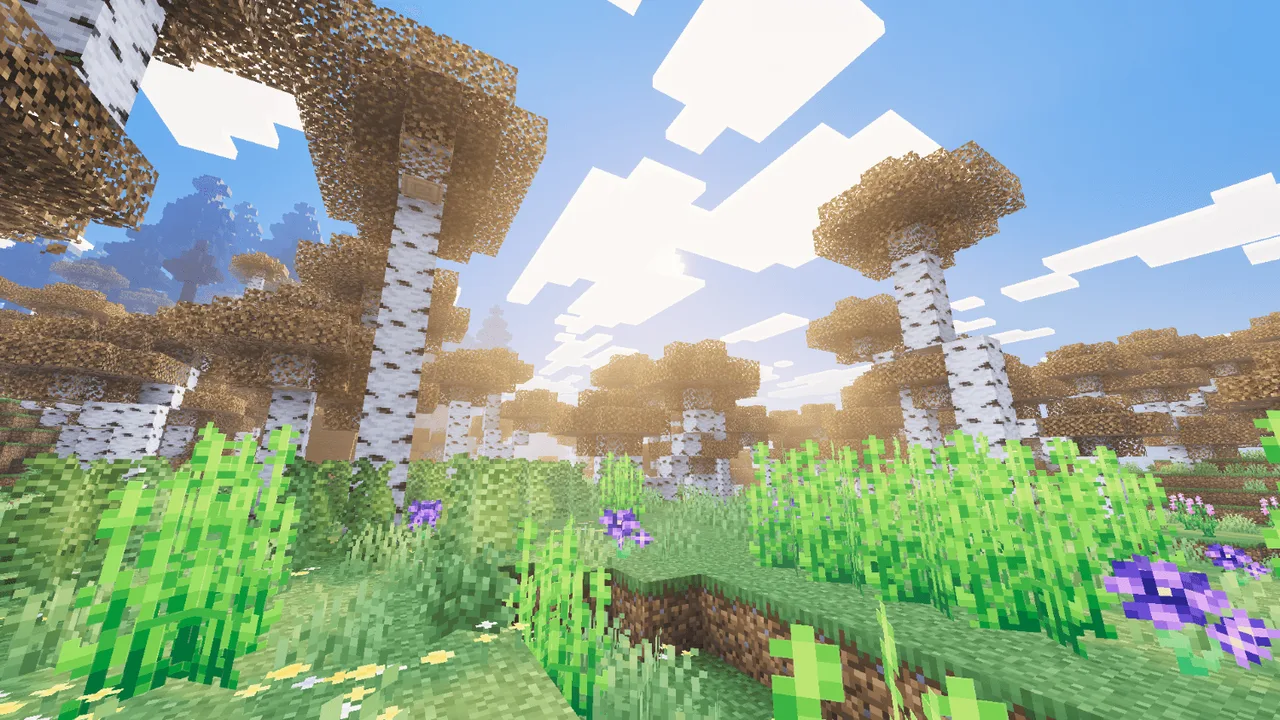
Skip to DownloadWarmLight Shaders enhance Minecraft Bedrock Edition with warm, cinematic lighting effects, producing beautifully golden skies and realistic reflections. Perfect for players seeking an immersive experience, these shaders transform the environment with vibr
ad
Description
In the world of Minecraft Bedrock Edition, visual enhancements can significantly change the way players experience the game. **WarmLight Shaders** stand out as a prime example of how shaders can elevate the aesthetic quality of the game through warm lighting and atmospheric effects. Designed specifically for Bedrock Edition, these shaders provide a unique twist on the typical Minecraft environment, making it feel more alive and immersive.
### What Are WarmLight Shaders?
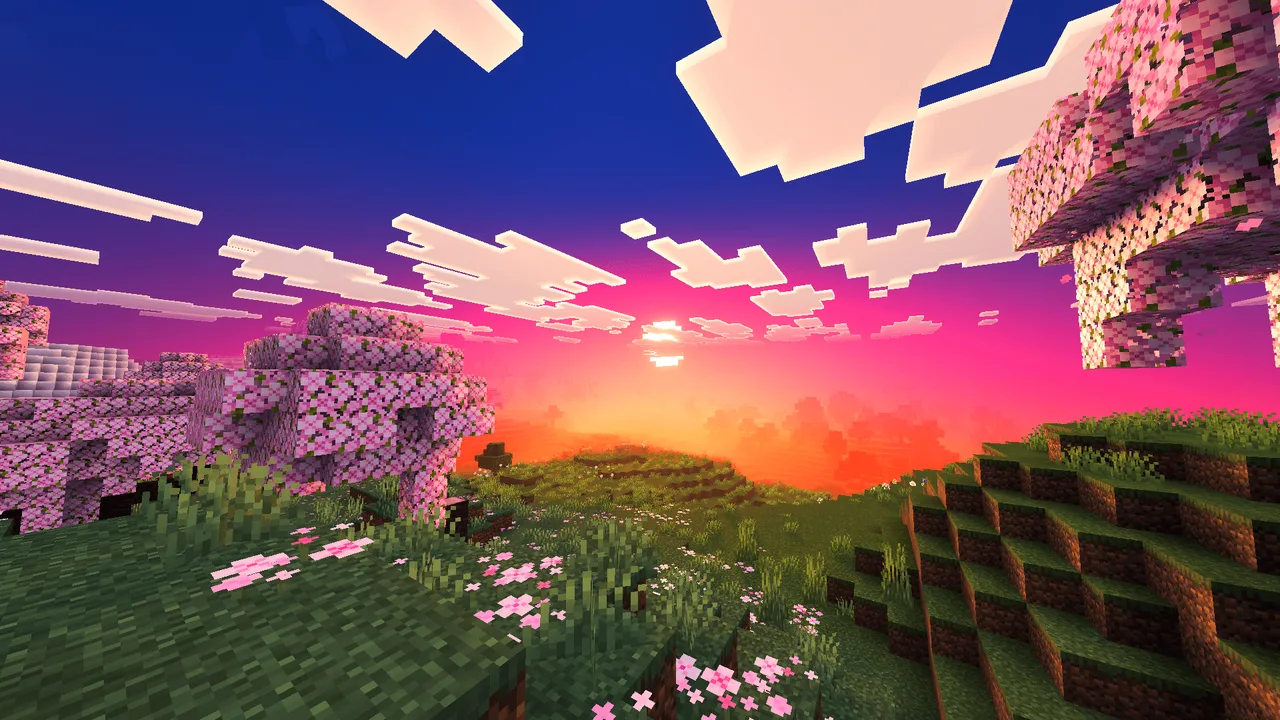
WarmLight Shaders are a texture pack that alters how light interacts with the environment in Minecraft Bedrock. When installed, players will notice a profound difference in how the game renders light and shadow. The shaders introduce warm, golden hues, reminiscent of a sun-drenched landscape, which drastically change the look of the game at various times of day. As players traverse their worlds, they will be greeted by sunset-tinted skies that shift dynamically, creating a more engaging atmosphere and enhancing the overall experience.
### Key Features and Benefits
1. **Cinematic Lighting Effects**: One of the most striking features of WarmLight Shaders is the cinematic lighting effect. This change allows sunlight to pour into the game world in a more natural manner, casting dynamic shadows and illuminating spaces with a warm glow. This is particularly noticeable during sunrise and sunset, where the color palette shifts dramatically, offering stunning views that can make even the simplest landscapes look breathtaking.
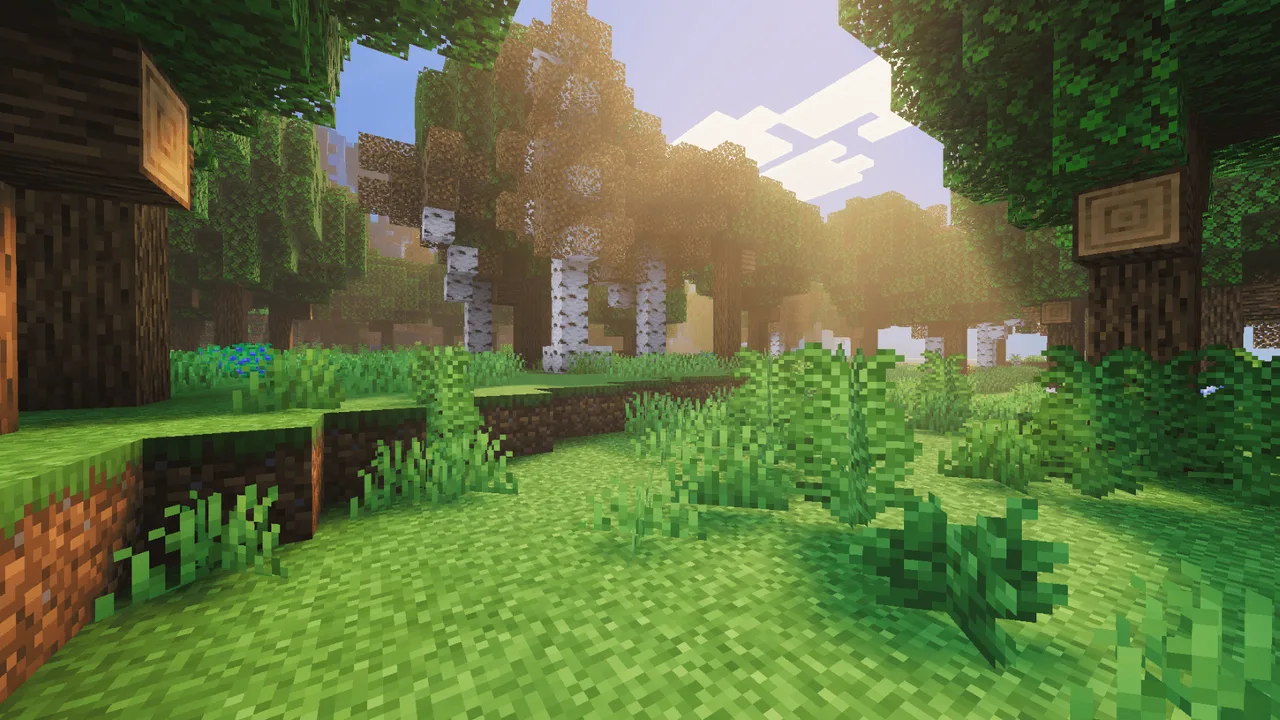
2. **Volumetric God Rays**: The addition of god rays enhances the player’s immersion. As players navigate through trees or other obstacles, the light filters through the leaves, creating a mesmerizing play of light and shadow. This effect brings a level of realism and wonder to the game, encouraging players to explore their surroundings more thoroughly.
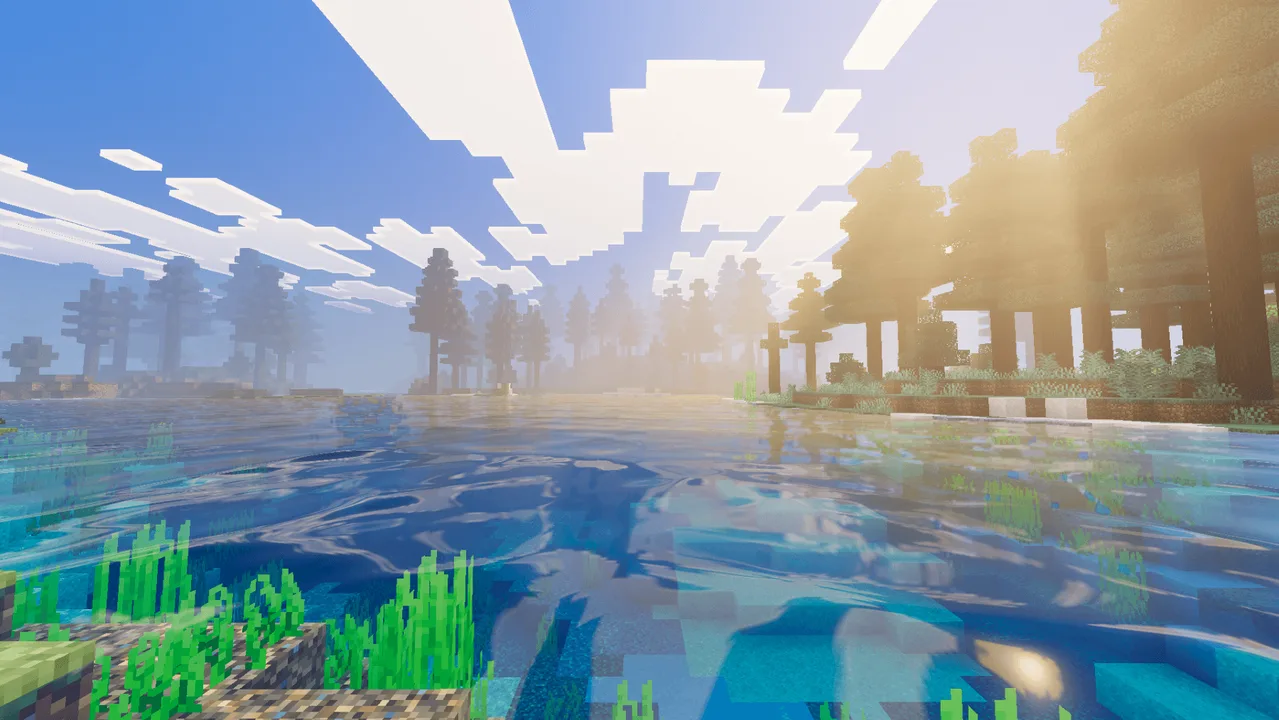
3. **Realistic Water Rendering**: Water in Minecraft often lacks the detail found in real-world reflections. WarmLight Shaders change that by adding realistic reflective properties to water bodies. Players can see the environment mirrored in lakes and rivers, making aquatic areas much more captivating. This not only improves the visual fidelity but also enhances gameplay as players can now rely on these reflections to locate treasures or assess their surroundings.
4. **Enhanced Ore Textures**: Another benefit of these shaders is the addition of PBR (Physically Based Rendering) textures for ores and blocks. This means that ores will appear more realistic, with added surface details and subtle emissive glows. This enhancement can make mining more rewarding, as players are visually engaged in the hunt for precious materials, feeling the rush of discovery with every new ore they unearth.
5. **Optimized Performance**: While visually intensive, WarmLight Shaders have been optimized to run smoothly on a range of devices, from mobile phones to consoles. Players can enjoy the enhanced visuals without compromising performance, ensuring that gameplay remains fluid and responsive, even in more demanding biomes.
### Who Will Enjoy WarmLight Shaders?
These shaders cater to players who appreciate aesthetic details in their Minecraft experience. Creative builders will find the enhanced lighting and textures beneficial for showcasing their builds, while survival players will enjoy the added immersion during nighttime exploration or when navigating through forests. The shaders also add a new dimension to adventure maps, making storytelling through visuals more impactful. However, players who prefer the default visuals may not find the changes necessary or may feel that the warm tones alter the game experience too much for their liking.
### Installation Guide
Installing WarmLight Shaders is a straightforward process. Follow these steps to enhance your Minecraft Bedrock experience:
1. **Download the Shader Pack**: Obtain the WarmLight Shaders pack from a trusted source.
2. **Open Minecraft Bedrock Edition**: Launch the game on your device.
3. **Access Settings**: Navigate to the main menu and select the 'Settings' option.
4. **Choose Storage**: Under settings, find 'Storage' and select it to access the texture packs section.
5. **Import the Shader Pack**: Tap on the 'Import' button to upload the downloaded shader pack. You may need to locate the file on your device.
6. **Activate the Shaders**: Once imported, go back to the settings menu, select 'Global Resources', and enable WarmLight Shaders from the available packs.
7. **Enjoy the Enhanced Experience**: Create a new world or load an existing one to see the shaders in action. Explore different biomes to fully appreciate how the shaders transform your Minecraft playscape.
### Conclusion
WarmLight Shaders represent a significant step forward in enhancing the visual elements of Minecraft Bedrock Edition. With their ability to create a warm, cinematic atmosphere, they appeal to a wide array of players, whether they are adventurers, builders, or just looking to enjoy the beauty of their blocky world. If you are ready to experience Minecraft in a new light, WarmLight Shaders may be the perfect addition to your gameplay.
ad
About the Content
CHANGELOG:
- Initial release featuring core lighting effects.
- Enhanced atmospheric effects, including volumetric fog and god rays.
- Improved water textures with realistic reflective properties.
- Optimized shaders for smoother performance across various devices.
- Expanded compatibility for the latest Minecraft Bedrock updates.
Installation
To install WarmLight Shaders in Minecraft Bedrock Edition, follow these steps:
1. **Download the Shader**: First, click on the download link provided for the WarmLight Shaders pack.
2. **Open the Game**: Launch Minecraft Bedrock Edition on your device.
3. **Go to Settings**: Once in the main menu, navigate to 'Settings'.
4. **Select Storage**: Within the settings menu, find 'Storage' and click on it to manage texture packs.
5. **Import the Shader**: Look for an option to 'Import' and select the downloaded shader pack from your device.
6. **Activate the Shaders**: After importing, return to the settings menu, go to 'Global Resources' under 'Settings', and find the WarmLight Shaders pack to enable it.
7. **Start a Game**: You can either create a new world or load an existing one to see the new graphics in action. Enjoy exploring your beautifully enhanced world!
Supported Minecraft Versions
1.21
If the download button doesn't work, click here for alternatives
If you are the original creator and would like this content removed, please submit a request through our DMCA page.