MCPE Glowing Ores Texture Pack
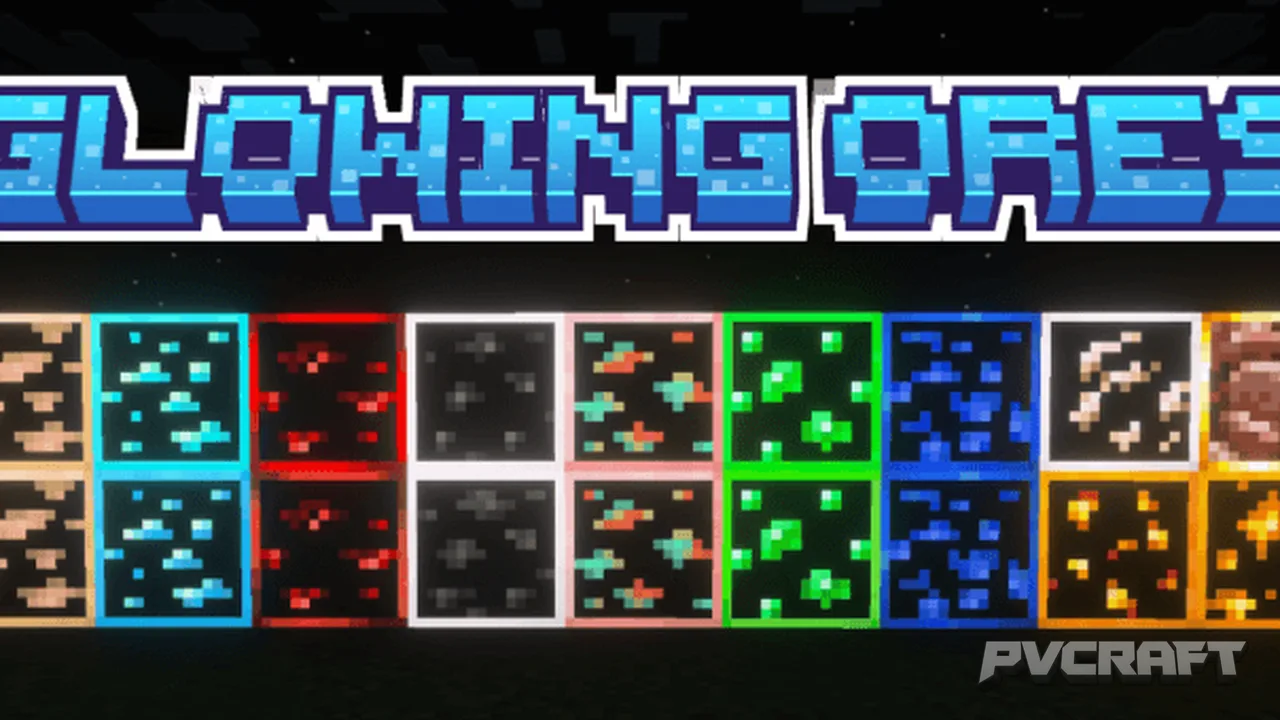
Skip to DownloadEnhance your mining experience with the Glowing Ores texture pack, which makes all ores emit a subtle glow. This pack improves visibility in dark caves while maintaining the classic Minecraft aesthetic, allowing players to find valuable resources easily w
ad
Description
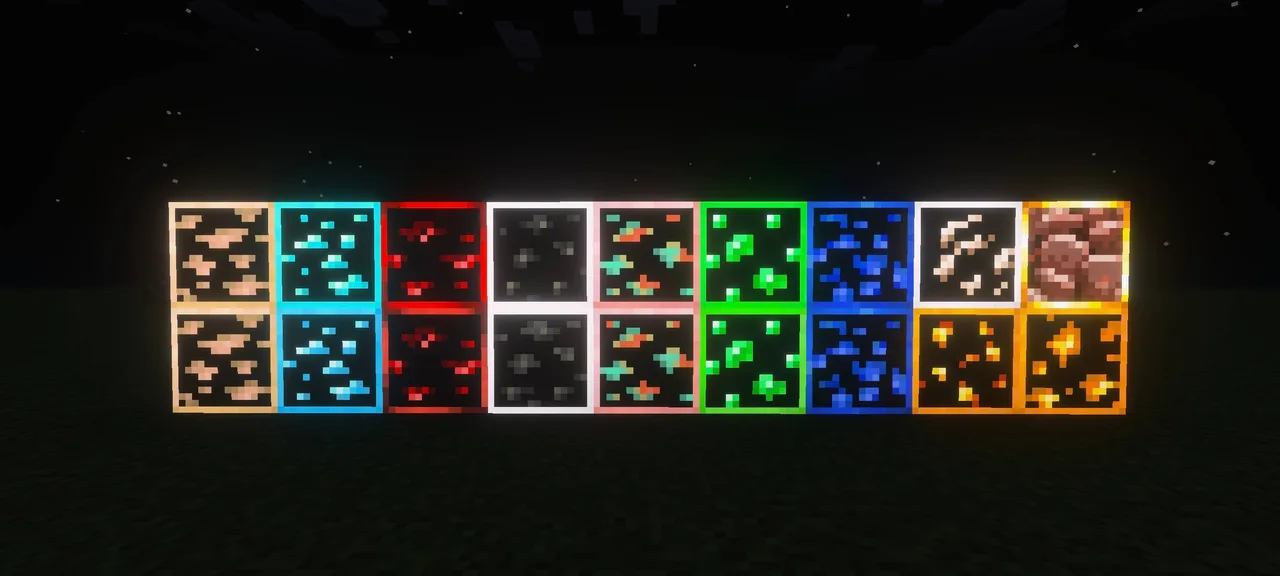
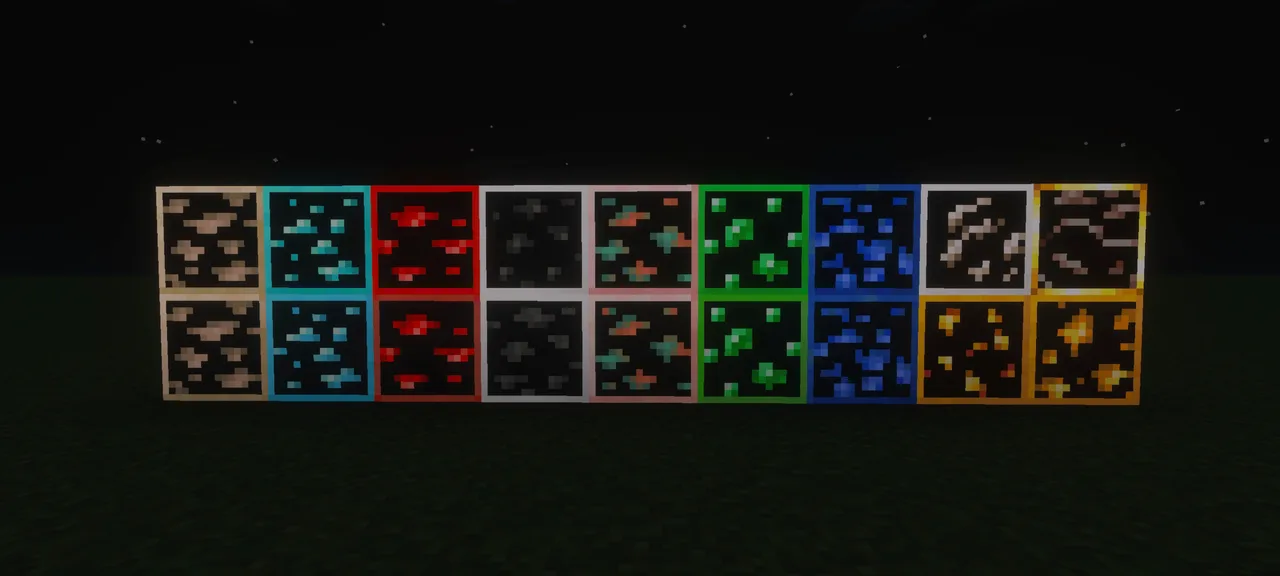
The Glowing Ores texture pack is a thoughtfully designed modification for Minecraft Bedrock Edition, aimed at improving the mining experience by giving all ores a gentle glow. This enhancement is particularly beneficial for players who frequently explore caves and underground systems where darkness can obscure valuable resources. With this texture pack, players can locate ores such as coal, iron, gold, diamonds, and more with relative ease, even in the murkiest environments. It preserves the classic visual style of Minecraft while adding a modern twist that makes the gameplay more enjoyable and efficient.
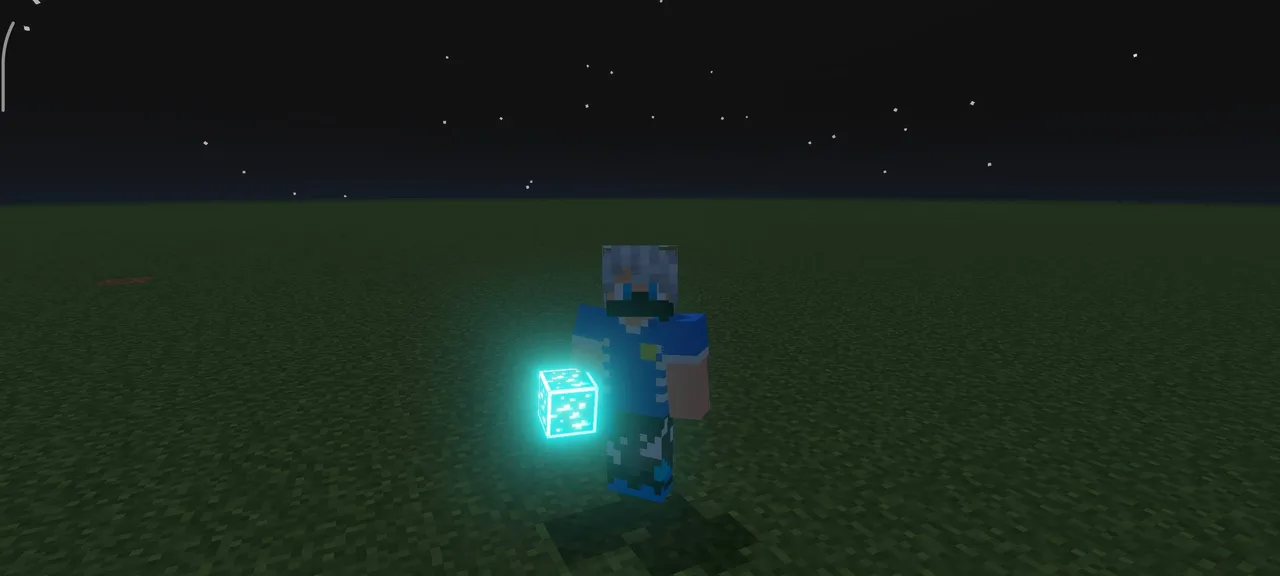
One of the standout features of the Glowing Ores texture pack is its ability to illuminate ores without overwhelming the player with brightness. Unlike standard lighting sources, the gentle glow emitted by the ores creates a natural ambience that feels integrated into the game’s environment. This effect not only facilitates easier mining but also enhances the overall aesthetic of underground exploration. Players can venture confidently into dark caves without the constant need to place torches, saving valuable resources and inventory space.
In addition to making mining more efficient, this texture pack is designed with accessibility in mind. New players or those less familiar with the game may find it challenging to spot ores when navigating through labyrinthine caves. The glowing effect serves as a visual guide, subtly highlighting where players should focus their efforts. This is especially useful in survival modes where resource gathering is critical for progression.
The Glowing Ores texture pack also comes with several customization options. Players can choose between different glow intensities, allowing them to tailor the experience to their personal preferences. For example, some might prefer a softer glow that blends seamlessly with the surroundings, while others may opt for a more pronounced luminescence that makes ores stand out starkly against the cave's backdrop. This flexibility ensures that every player can enjoy the pack in a way that suits their individual style of play.
Another advantage of using the Glowing Ores texture pack is its compatibility with other texture packs and game settings. It works harmoniously with most vanilla-style textures, meaning players don’t have to sacrifice their favorite textures or other mods to enjoy the glowing effect. This versatility ensures that players can mix and match different aesthetics to create a unique gaming experience while still benefiting from the enhanced ore visibility.
Installation of the Glowing Ores texture pack is straightforward, making it accessible even for those who might be new to Minecraft Bedrock Edition. To help players get started, here’s a step-by-step guide on how to install the pack and begin enjoying the glowing ores:
1. Begin by downloading the Glowing Ores texture pack file onto your device. Ensure you have the correct version for Minecraft Bedrock Edition.
2. Open Minecraft and navigate to the main menu.
3. Select "Settings," then scroll to the "Storage" section.
4. Click on "Import" and find the downloaded texture pack file. Select it to import the pack into your game.
5. Once imported, return to the main menu and select "Play".
6. Choose the world you wish to apply the texture pack to and click on “Edit.”
7. In the world settings, scroll down to the “Resource Packs” section and locate the Glowing Ores pack.
8. Activate the pack by clicking the plus icon next to it. Make sure it’s listed as an active resource pack.
9. Confirm the changes and enter your world. The glowing ores should now be visible throughout your mining adventures.
The Glowing Ores texture pack is more than just a visual enhancement; it is a gameplay tool that fosters exploration and resource gathering, allowing players to dive into the depths of their worlds with confidence. Whether you are a seasoned miner or a newcomer, this pack provides a delightful addition to your Minecraft experience, making every underground adventure more fruitful and enjoyable. Dive into your world, and let the glow guide your path to countless treasures!
ad
About the Content
CHANGELOG:
- Initial release, introducing glowing effects for all ores.
- Enhanced glow intensity for better visibility in low-light conditions.
- Added support for new ores introduced in recent updates.
- Implemented optimized textures for improved performance on mobile devices.
- Introduced an option for players to adjust glow settings in-game.
Installation
To install the Glowing Ores texture pack for Minecraft Bedrock Edition, follow these simple steps:
1. Download the Glowing Ores texture pack file from a trusted source. Ensure it's compatible with Minecraft Bedrock Edition.
2. Open Minecraft on your device and go to the main menu.
3. Click on "Settings" and navigate to the "Storage" section.
4. Look for the option to "Import" and select it. Find the downloaded texture pack file and select it to begin the import process.
5. Once imported, go back to the main menu and choose "Play".
6. Select the world where you want to apply the texture pack, then click on "Edit".
7. In the world settings, scroll to the "Resource Packs" section. Here, locate the Glowing Ores texture pack and click the plus icon next to it to activate it.
8. Save the changes and enter your world. You should now see all ores emitting a gentle glow, making your mining expeditions more efficient and enjoyable.
Supported Minecraft Versions
1.21
If the download button doesn't work, click here for alternatives
If you are the original creator and would like this content removed, please submit a request through our DMCA page.